|
Okay, on to the mechanics of putting a graphic onto a website. There are some hard and fast rules for doing this to ensure that you remain HTML and search engine friendly.
Capturing the Image
The first thing is getting the graphic in the first place. One of the most common ways is to 'right-click' (for a PC) or click and hold (Mac). This should bring up a menu which include the command 'save picture as...' which you obviously use! You are presented with a location where you (a) want to call it, and (b) where you want it saved to. You can call the image anything you like, but it is a good idea to call it something short, memorable and apt.
The location on your hard drive is important. If you have an HTML editor, save it in there, with the rest of the files it will be linked to (like the web page you are designing).
So, we have a graphic saved onto your hard drive. Did you notice which format it was saved in? If it's a GIF then it be automatically saved as such. Same for a JPEG. The other way of selecting a graphic is for the Clipart site to send it to you. Some of the sites will send you the graphic by e.mail if you want them to.
I personally don't recommend this as it may come through as an attachment and you may not be familiar with the senders e.mail address and naturally be wary about opening attachments.
Now we have the image, next you need to plant it somewhere on your site. The system I use goes like this:
Insert - image - (folder location) - (image name)
Yours may be similar. This puts this image  onto the page where I want it. The code for this image can be broken down thus: onto the page where I want it. The code for this image can be broken down thus:
<img src="arrow.gif" width="16" height="10" border="0" align="middle" alt="arrow">
Let's break this down into its component parts. The img src="arrow.gif" (image source) is the name of the image. In this case I just called it 'arrow', you could call it 'r_arrow' if you had two (one left, one right) for example.
Now you see why a short name is preferable! Next is the white gap which as you know must follow every ". This is followed by the width="16". The width is measured in pixels. Then there is the height, again in pixels. It is very important that you tell the browser the width and height otherwise it has to work it our for itself, and this takes time (not much, but it is after all about speed!).
To Border or not to Border?
The border="0" is entirely up to you. Most graphics do not require a border as you will probably want it to sit there blending into the background. But let's prove a point. Let's take the arrow again and this time put a border around it of "1", and another with a border of "3", just to demonstrate.
- border of "1" - border of "3".
Yuk! However there are times when a border is useful A good example is when the graphic is part of a link. If you have your links set up so that the link colour is blue, and the mouseover is red, then a border can look nice and be useful. Here's an example:
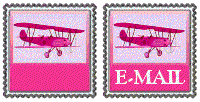
The left-hand button has no border. The button in the middle has a border of "1" which you can hardly see, and the link is inactive. The button on the right has an active link with the same size border. Did you see how the border colour changed from blue to red onmouseover?
This is a neat way of showing that the button is in fact a link!
Line it all up...
The next part of the code is the alignment. This is called align="middle". This is your choice depending on where you want the text to wrap around the graphic. There are examples on the previous page where you can see the text aligned "left" and "right".
This means that after the the graphic has been placed on the page the text you write about it wraps itself aroudn the picture and continues onto a 'full' line as soon as it can underneath the picture.
'Alternate' Text
Finally there is the alt="arrow" tag. This is a must-have as well and is overlooked a lot! The 'alt' command tells anyone who has the graphics 'turned off' when they are surfing what the image should have been, or if the graphic has failed to load at all. If you hold the mouse arrow over the 'graphic' on the right you will also see the alternate text appear.
The difference looks like this...
|
|
| This graphic has no 'Alt text. |
This graphic has 'Alt' text. |
And that's it except for one or two final notes. Some graphics are made especially for some websites. If you try and copy them you may be infringing the copyright laws. My advice to you is only take graphics from site specialising in them. There are hundreds of sites that specialist in Clip Art, so really there is no excuse!
Some sites have a 'no right click' policy backed up by a neat piece of Javascript to prevents right-clicking. (See the Javascript pages for details of this and much more Javascript!)
Here's a modest selection of Clipart sites that I have looked at - enjoy!
If you have a clipart site that you would like to have listed here, please contact us. (All we need is a 88 x 31 button).
For information about Image Maps, please click here.
[1] [2] [3] [4]
Top
<<< Previous page
|