Zip Files
If you have not used a Zip programme before, it is quite easy to work with. First download the evaluation version of WinZip and install it on your computer. You will not have to do very much configuration initially, just run it. Every time you open an evaluation version (you have about a month to play around with it for free), you will be asked if you want to purchase it or continue the evaluation. Just click on the 'Evaluation' button to start with. When you do buy it, you will be e.mailed a code which is very easy to install, the evaluation period is then over, and the programme is yours!
Back to the downloading thing. Whenever you attempt to download anything from the internet you will be initially greated with a warning box asking what you want to do with the file. It looks something like this:
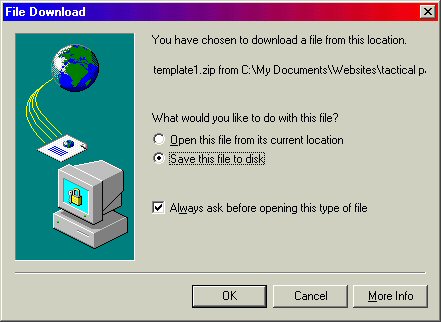
You have the option to either save the file on your 'C' drive or onto a floppy disk. If you are not completely happy with the source of the file, then I would suggest you save the file to a floppy. You can then run your anti-virus software over it before transferring it to your hard-drive.
Whichever way you go, the WinZip file will then automatically kick in. If you are still evaluating, click on the 'Use Evaluation Version' button. You will then see the following:
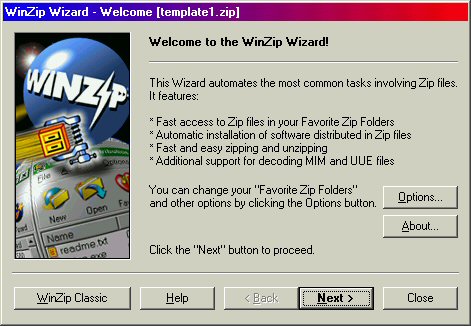
Click on the 'Next >' button and you will be met with this one:
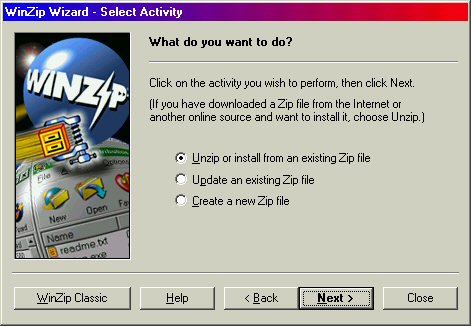
Again click on the 'Next >' button and you will get yet another box appear looking something like this:
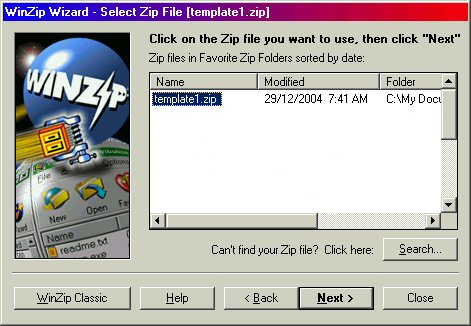
Click on the 'Next >' button and another box appear looking something like this:
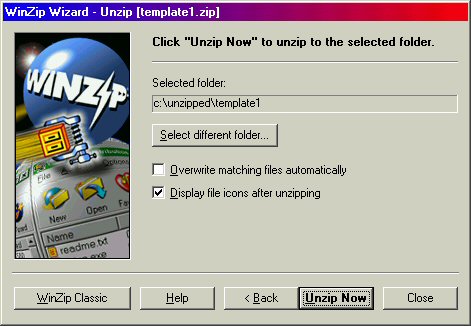
You have yet another option here, I always select a different folder to the one offered because I can never remember after a download where I put it! I always play safe and put the destination folder in a brand new folder which I create before I download anything. This folder is located in 'My Documents' and I call it something memorable so I always know where my downloads are!
That's the trouble with getting older - you forget things easily! Anyway, click on 'Select different folder' and the contents of your desktop will appear in the box, including 'My Documents'. Click on the folder you want it to go to, then click 'OK'. You will then be back at the box above, but with your new folder name selected.
Click on 'Unzip Now' and hey presto in a few seconds a new window will open showing you the files you have downloaded. The WinZip programme is still open at this stage with a dialogue box open telling you the operation was (hopefully) successful. If you have nothing else to download, click on the 'Close' button. That's it!
Top
<<< Previous page
|